Getting Started: Your First Scan
Learn how to connect your Confluence workspace and run your first conflict detection scan.
On this page
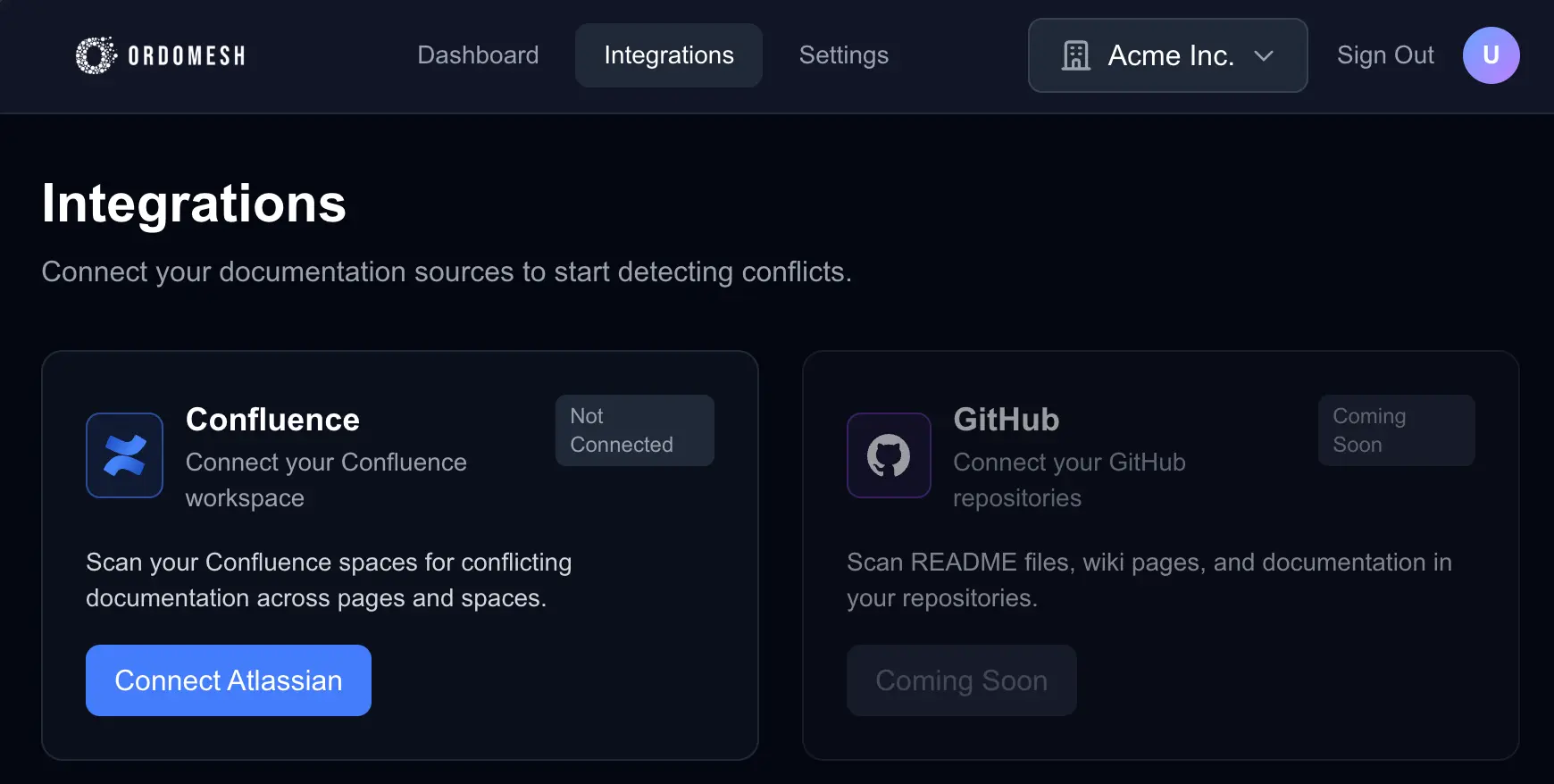
1. Connect to Atlassian/Confluence
Before you can scan your documentation, you need to connect your Atlassian account to OrdoMesh. This allows us to securely access your Confluence spaces.
Step-by-step instructions:
- 1Navigate to the Integrations page in your dashboard
- 2Click the "Connect Atlassian" button
- 3You'll be redirected to Atlassian's authorization page
- 4Sign in with your Atlassian account credentials
- 5Review and approve the permissions OrdoMesh is requesting
- 6You'll be redirected back to OrdoMesh with your account connected
What permissions does OrdoMesh need?
OrdoMesh requires read access to your Confluence spaces and pages. We never modify your content or share it with third parties. The permissions allow us to analyze your documentation for conflicts and inconsistencies.
2. View Your Spaces
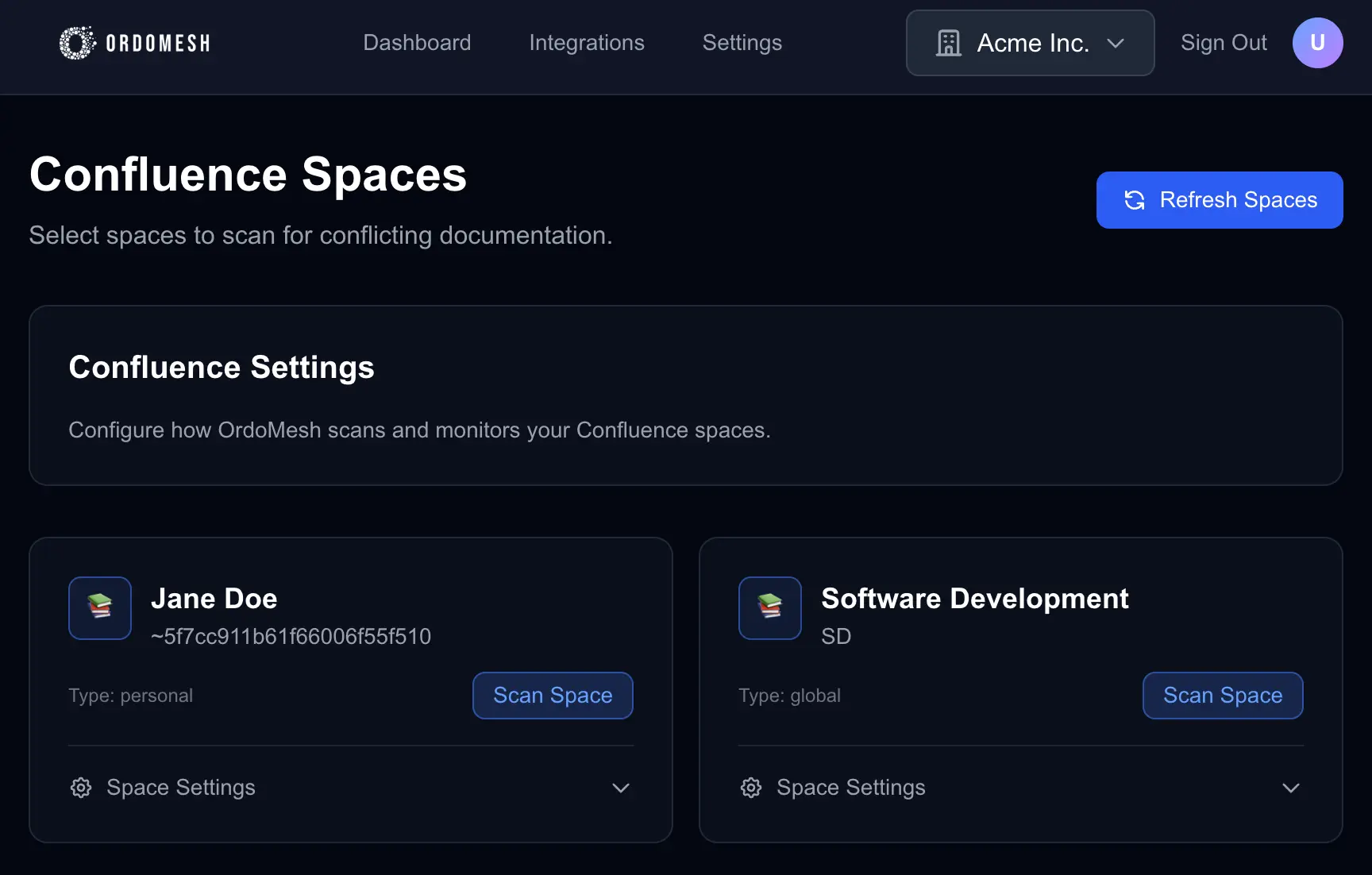
Once connected, OrdoMesh will automatically fetch all Confluence spaces you have access to on the Integration page.
Finding your spaces:
- •After connecting, you'll see a list of all available spaces on the Integration page.
- •Each space card shows the space name, key, and total number of pages.
- •If no spaces are displayed, try clicking the "Refresh Spaces" button on the top right of the page.
3. Run Your First Scan
Now that you can see your spaces, it's time to run a conflict detection scan on one of them.
How to start a scan:
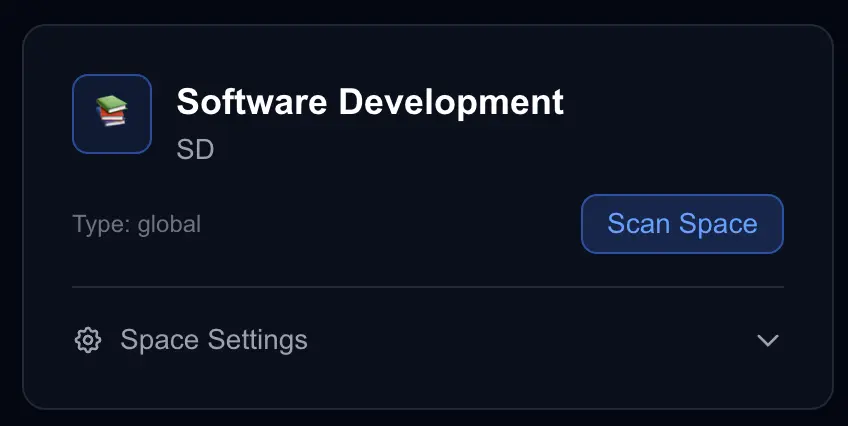
- 1Choose a space from your list (we recommend starting with a smaller space for your first scan)
- 2Click the "Scan Space" button
- 3The scan will begin processing. A short notification will appear to indicate it's started.
- 4Depending on the space size, scanning may take anywhere from a few seconds to several minutes
- 5You can now navigate to the dashboard to see any conflicts that have been found. If no conflicts are found, you'll see a message indicating that as well. Well done in that case!
Processing time
Large spaces with hundreds or thousands of pages may take longer to scan. You can close the browser and return later. Scans continue in the background.
4. Understanding Your Results
Once your scan completes, you'll see a detailed report of conflicts and inconsistencies found in your documentation.
Types of conflicts detected:
Contradictions
Statements that directly conflict with each other across different pages or within the same document
Duplicates
Similar or identical content appearing in multiple places that could diverge over time
Stale Information
Outdated references, deprecated processes, or content that hasn't been updated in line with recent changes
Inconsistencies
Terminology, formatting, or policy differences that could cause confusion
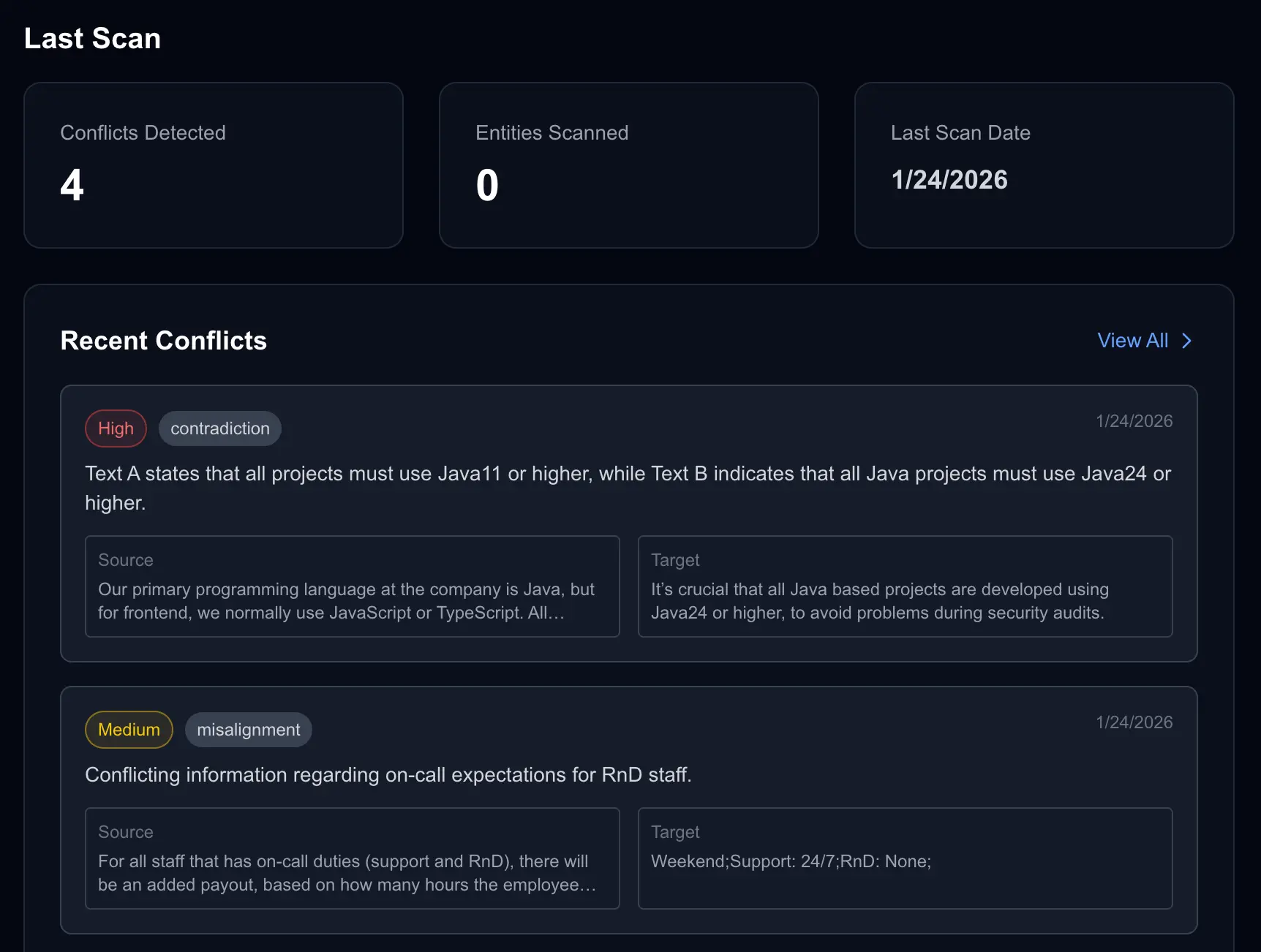
Severity Levels Explained
Severity levels:
- CRITICALDirect contradictions that could lead to serious errors or misunderstandings
- HIGHSignificant inconsistencies that should be addressed soon
- MEDIUMNotable issues that could cause confusion but aren't urgent
- LOWMinor inconsistencies or suggestions for improvement
Next Steps
Now that you've completed your first scan, here's what you can do:
- ✓Review each conflict and decide how to resolve it in your documentation
- ✓Set up automatic scanning schedules to continuously monitor your spaces
- ✓Scan additional spaces in your workspace
- ✓Configure conflict resolution preferences for your team
Need help?
If you encounter any issues or have questions, we're here to help: